
BandPeer keeps a band's charts, tabs, recordings, setlists and calendar on every member's own machine, and syncs them straight between those machines - no server in the middle. This guide walks through it in the order you'll meet it. The pictures are the app itself; the band in them, The Ferry Lights, is made up.
Getting started
Download BandPeer and run BandPeer-Setup.exe.
It installs for you alone, with no administrator rights, and adds BandPeer to the Start
menu. It runs on Windows 10 and 11 (64-bit). The download page has the details, and what to
do if Windows shows Windows protected your PC.
The first time it opens
Before anything else, BandPeer asks which band you're in. Pick one of three:
- Start a band - type your name and the band's name, and optionally add a logo and a photo. BandPeer gives the band a band code: five ordinary words to read out to everyone joining. You can't pick your own, because a code somebody invents is a code somebody can guess. Press Create band.
- Join a band - type your name and the code whoever started the band gave you. Bands on your own network are listed under Who to ask; you don't need an address (see A band in more than one house).
- Just me - work on your own. The library, calendar and every practice tool work the same; nothing is shared and nobody can reach your machine. You can start or join a band later without losing anything.
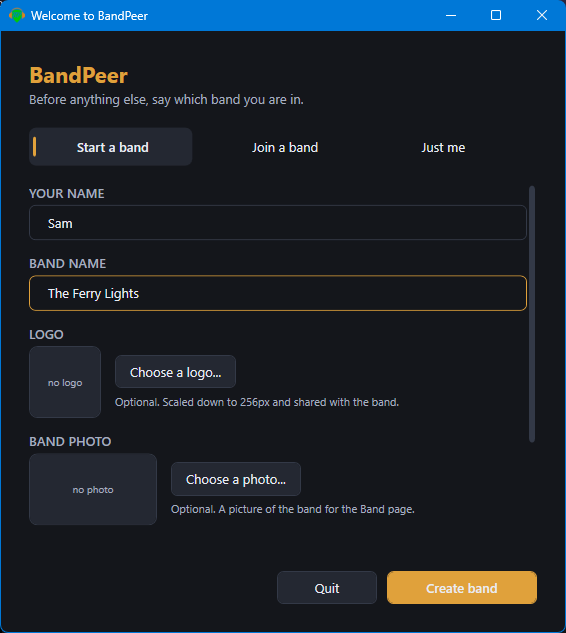
The first screen, starting a band.
The free trial
BandPeer has no free tier: until there's a trial or a license, every page except Settings shows BandPeer needs a license. Nothing is ever deleted while it waits, and Export my data... always works.
- Start a 7-day personal trial - everything for you: the practice room, your own library and calendar, and a place in any band that has a band license. Pick this to try it on your own or to join someone else's band.
- Start a band trial for <your band> - for a band you started. It switches on chat, calls and sharing for the band for 7 days, and covers you too. To see this button, start the band first (from the band name at the top of the window), then come back.
A trial needs no card and never turns into a payment. Each install gets one personal and one band trial. The same buttons are under Settings › License.
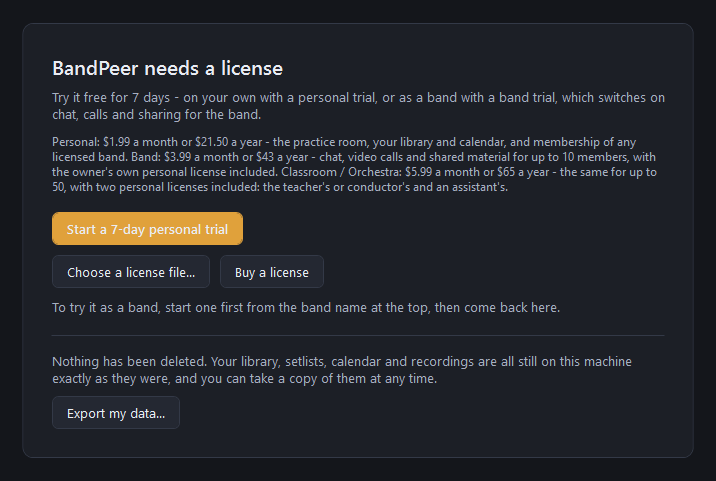
What a new install shows until a trial or license starts.
Buying a license
Everyone needs a personal license (one machine at a time). A band also needs a band license (up to 10 members), bought by whoever started the band; it includes the owner's own personal license. A teacher or conductor can use a Classroom / Orchestra license instead (up to 50, with the teacher's and one assistant's personal licenses included). Each is monthly or yearly; Pricing compares them and shows the prices.
-
Sign in to your account
In BandPeer, press Buy a license (in Settings › License, or on the license screen), or press Buy a license on your account page; the plans and prices are on the Pricing page. Either way you sign in to your account first. Your account needs only an email address: we send a link, and the link signs you in. There's no password.
-
Subscribe through PayPal
From there you go to Extra Medium Software Co.'s subscription page (BandPeer's maker, at extramediumsoftwareco.com). Choose the plan, monthly or yearly, then tick the box to agree to the automatic renewal terms: it renews at the price shown until you cancel. PayPal's buttons only work once the box is ticked. Pay with a PayPal account or a card. Licenses are sold in the US only for now; the trial works anywhere.
-
Get a code from your account page
You come back to your account page, which shows the license (it can take a minute to appear; reload the page). Press Get a code and copy the code it shows: it's shown only once, works once, and lasts a day. Lost it? Get a new one, and the old one stops working.
-
Paste it into BandPeer
Open Settings › License, paste the code into Have a code? and press Use code. The same box takes every kind of license. A band or classroom code goes on the band owner's machine and reaches everyone in the band the next time they sync.
Canceling: in PayPal, go to Settings › Payments › Manage automatic payments and cancel BandPeer (your account page links there), or email bandpeersupport@gmail.com and we'll cancel it for you. The license keeps working until the end of the period you've paid for. If BandPeer isn't for you, email us within 14 days of a payment for a full refund. Refunds and canceling has the details.
Lost your code? Sign in to your account: every license you've paid for is there, with Get a new code.
How to use it
Start or join a band
-
Install it on every machine that's joining
Each member installs BandPeer and starts their own trial or license.
-
Start the band and read out the code
Whoever starts the band gets its five-word code. Treat it like a door key, not a username: it's what keeps everyone else out. A handful of wrong guesses from one address locks that address out for a while.
-
Everyone else joins with it
On the first screen choose Join a band, or later click the band name at the top of the window and choose Start or join another band.... On the same wifi you find each other on your own.
-
Approve them
New members show up on the Band page (click the logo and "The Lounge" at the top of the menu), waiting to join. Press Approve and their machine hears about it the next time you're both online.
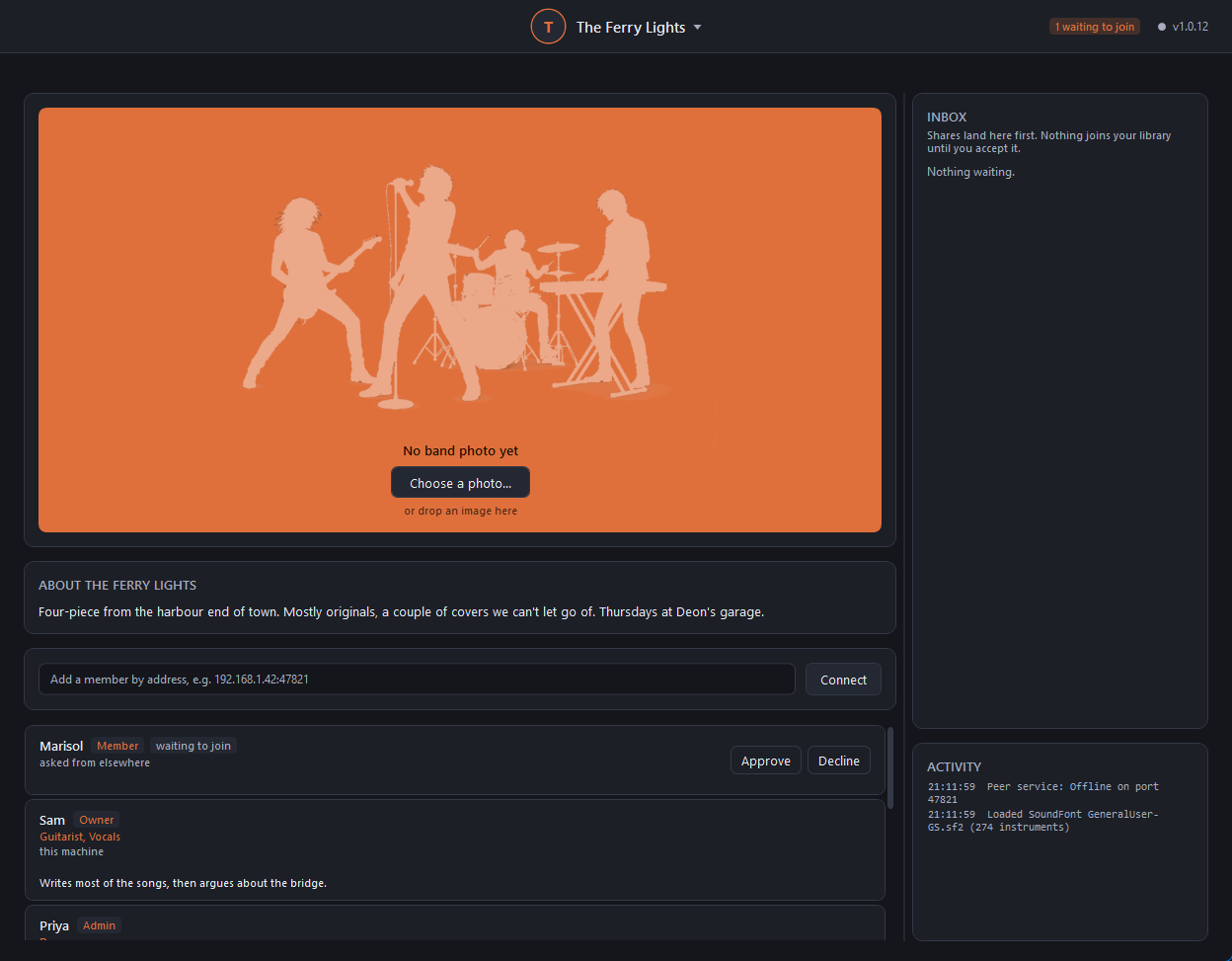
The Band page, with a new member waiting.
The band name at the top of the window is also how you switch between bands, and back to your solo work. Each band keeps its own library, calendar, chat and color.
A band in more than one house
Finding each other on your own only works on the same network. For bandmates elsewhere, the band's owner switches one thing on:
- In Settings › Network, press Check my router to see whether it can open a port. Nothing changes yet.
- Tick Ask my router to let bandmates reach this machine and press Apply and restart sharing. It's off until you choose it, because it's a decision about your own network.
- Everyone else joins with the band code as usual. BandPeer looks the band up by its code and finds the owner's machine. Where it is is stored encrypted with the code, so even bandpeer.com can't read it.
If the router can't do it, a bandmate can still connect by address: Add a member by
address on the Band page takes something like 192.168.1.42:47821, as long as
that port is forwarded to the owner's machine.
Who can do what
Whoever starts the band is its Owner. The owner can make a member an Admin, and an admin can approve or decline ordinary members, edit the band's details and change its code - never another admin's place, and never the owner's. Every machine works this out for itself from signed grants; there's no server holding the "real" answer. Your bio and roles are yours to write, band by band.
Share a chart
-
Add it to the Library
Drag files onto the Library page, or press + Add content for a link or a file. Text files are read to see what's in them, so a tab saved as
.txtis filed as a tab, not lyrics. The library keeps links and file paths, never copies of your files. -
Share it when it's ready
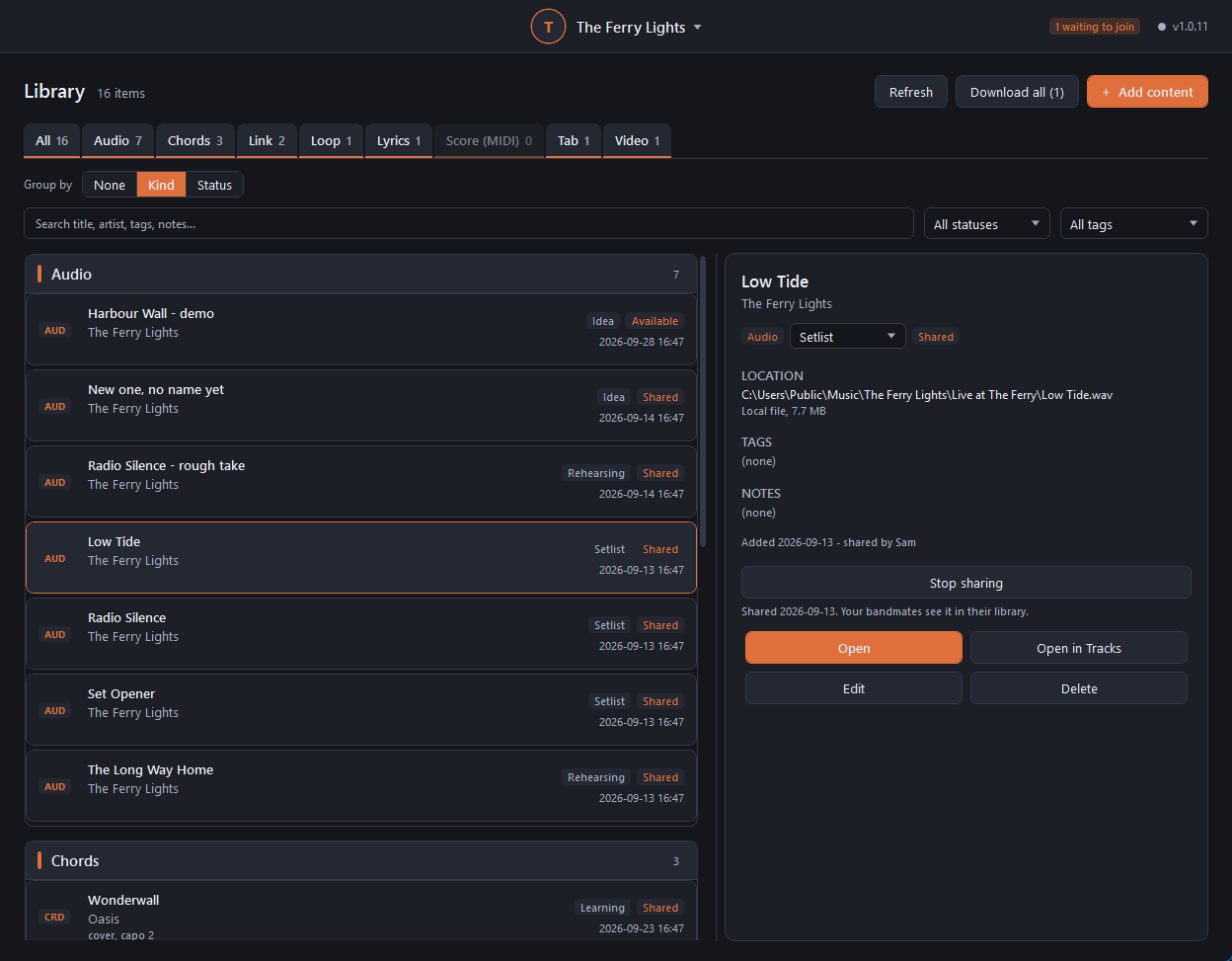
Everything starts out Private. Press Share and the band can fetch it; Stop sharing stops your machine handing it out, though it can't take back a copy somebody already has.
-
Fetch what the band shared
A bandmate's item shows up as Available. Nothing downloads until you ask: Get file for one, or Download all above the list. Files sent to you directly land in the Band page's Inbox first, and join your library only when you Accept them.
-
Open it where it belongs
Open puts chords on the Guitar page, a tab in the Tab Player, a MIDI file on the Keyboard and a recording in Tracks. Anything else opens the way Windows already knows how.
Book the gig
On the Calendar, press + Add event for a rehearsal or a gig, with where it is, notes and a setlist picked from the library. Press Share and the songs travel with it, so nobody ends up with a title they can't open. Duplicate copies an event for next week's rehearsal.
Chat and calls
Chat messages the whole band or one person; a direct message exists only on the two machines it names. Enter sends, Shift+Enter starts a new line.
- Check camera and mic at the top of the Chat page shows your picture as a call sends it and a level for your microphone. Record a few seconds and it plays them back the way your bandmates will hear you.
- Each person in the list has a call button, lit when they're online and in the band; hover a gray one to see why. Calls use echo cancellation, so speakers work as well as headphones.
- In a call, Mute mic and Camera off are your end; Volume is them, in your speakers. Closing the call window hangs up.
The practice room
Seven tools, each with its own page in the menu. Each keeps its place while you're elsewhere, and sound stops when you close the window. The feature pages show each one.
Tracks plays the band's recordings against their waveform, with a ten-band equalizer. A track can keep playing while you use the rest of BandPeer; the top of the window shows it, with pause and volume.
- Get a tab in from anywhere. Drop a tab file on the Tab Player, or select a tab on a web page and drag it straight over. Chord sheets drop onto the Guitar page the same way.
- Tune the guitar down. The Guitar page's Tuning changes the chord shapes to match. The Tab Player's tuning works the other way round: the frets stay as written and the pitches follow.
- Your keys, your kit. On the Drums page, Assign keys lets you click a drum and press the key you want for it; Defaults puts them back.
The tray and updates
Closing the window leaves BandPeer running in the tray by the clock, so chat, calls and approvals still reach you. Click the icon to open it again; right-click it and choose Quit BandPeer to close it completely. Settings › Network can turn that off, or start BandPeer with Windows.
The top right of the window shows your version, and says Update available when there's a newer one. Clicking it opens the download page: BandPeer never downloads or installs anything by itself. Install the new version over the old one; your data stays. Keep the whole band on the same version, since different versions may not be able to connect.
Keys and controls
The keys work while their page is showing and you aren't typing in a box.
| Metronome | Space starts and stops. T taps the tempo. |
|---|---|
| Looper | Space plays and pauses. |
| Guitar | Space strums the chord downward (not while a chord sheet is playing). |
| Drums | Q crash, E ride, W open hat, A closed hat, D high tom, F mid tom, G floor tom, S snare, Space kick, V and B the left and right pedals, R cowbell, C clap, T tambourine. Hold Shift for a soft ghost note. Assign keys changes them; Esc finishes. |
| Keyboard | Z S X D C V G B H N J M play the lower octave, Q 2 W 3 E R 5 T 6 Y 7 U the one above. The on-screen < and > buttons move them up and down the piano. |
| Chat | Enter sends; Shift+Enter is a new line. |
| Menu | The arrow at the top folds the menu down to icons; double-clicking the title does the same. |
Settings
Settings is at the bottom of the menu and is never locked, even without a license. It has six tabs. Most things save as soon as you change them; the sharing settings on the Network tab wait for Apply and restart sharing. The pictures show a new install.
You
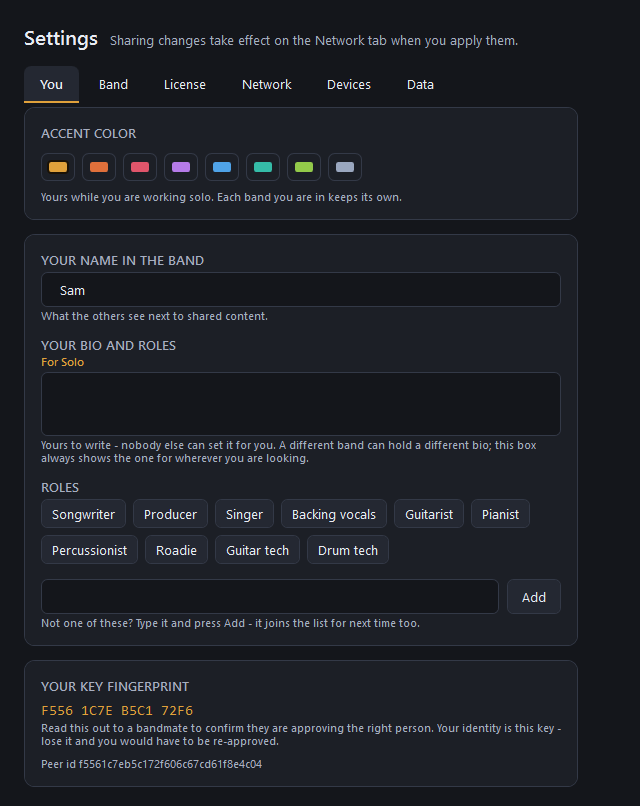
- Accent color Default: amber
- The color the whole app wears. It belongs to whatever is in view: each band keeps its own, and solo has its own. Only an admin can change a band's; everyone in the band sees it once they sync.
- Your name in the band Default: your Windows user name
- What the others see next to what you share and say.
- Your bio and roles Default: empty
- What you say about yourself, and what you do (Guitarist, Producer...). Tap a role to turn it on or off; type one that isn't listed and press Add. Each band holds its own, so the covers band and your own project can say different things. Nobody else can set yours.
- Your key fingerprint
- Not a setting: read it out to a bandmate so they know they're approving the right person. Your identity is this key, made when BandPeer first ran.
Band
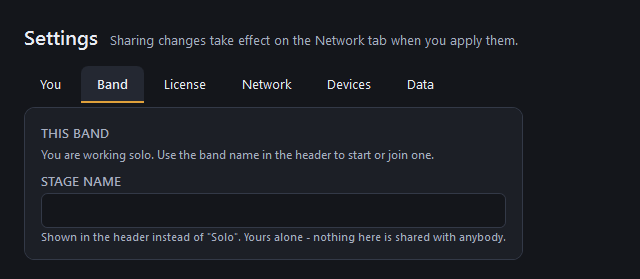
- Stage name Default: empty ("Solo")
- When you're working solo, the name the header shows instead of "Solo". Nothing here is shared.
- Band name, Band bio and Logo
- With a band in view: what everyone in it sees on the Band page. Save band details sends the change to the band. Only the owner and admins can change them.
- Band code
- The code to give anyone joining. New code... (owner and admins) replaces it: current members carry on, anyone with only the old one is locked out.
- Leave this band
- Takes this machine out of the band.
License
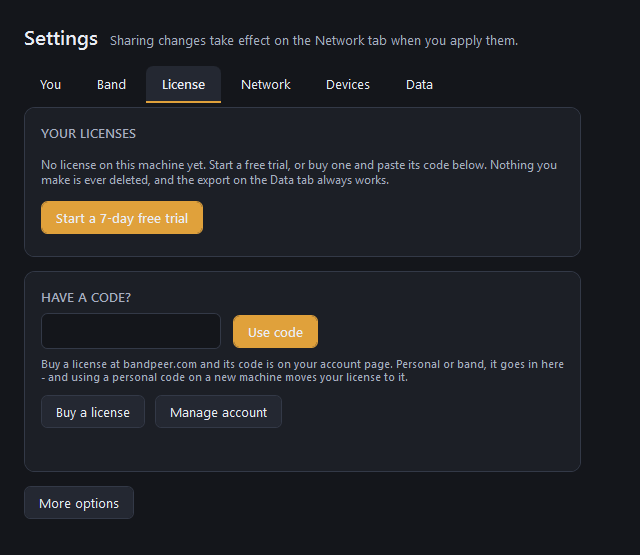
- Your licenses
- Every license on this machine, personal and band, with whether it's good and until when. With none, the trial buttons are here. On a classroom license, Assistant's license is for chooses who gets the second included license (it can move to someone new once a month).
- Have a code?
- Paste a code from your account page and press Use code. A personal code used on a new machine moves your license to it. If you started more than one band, For the band asks which one a band code is for. Buy a license takes you to your account page to buy one (signing you in first); Manage account opens your account page.
- More options
- For a machine that's never online, or when support asks: Copy this install's key (safe to share), Choose a license file... for a license we send as a file, Renew now, and Copy band details for a band license sent as a file. License service is where licenses come from Default: bandpeer.com; leave it unless support asks, and Use bandpeer.com puts it back.
Paid licenses renew themselves in the background during their last week, as long as the subscription is paid. One that stops being paid stops working within a month.
Network
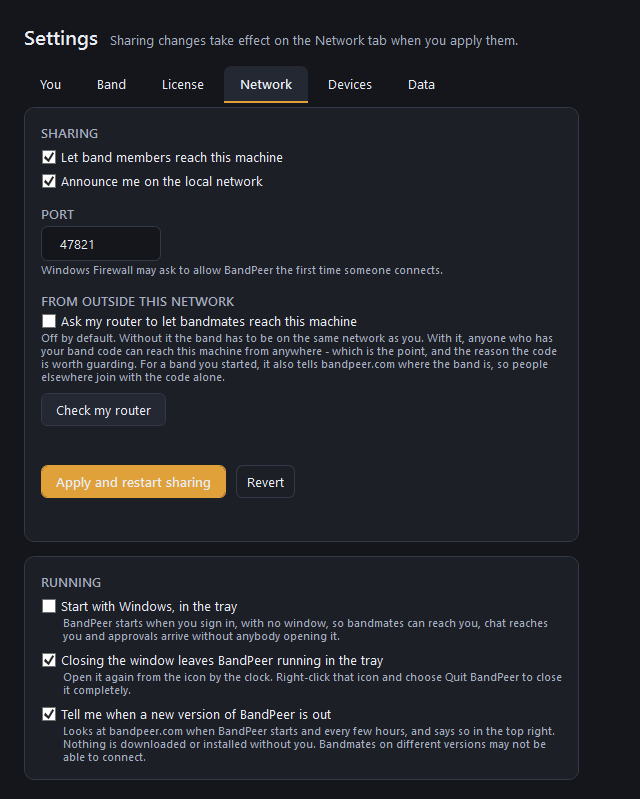
- Let band members reach this machine Default: on
- Off, nobody can connect to you, so nothing syncs.
- Announce me on the local network Default: on
- How bandmates on the same network find you without typing anything.
- Port Default: 47821
- Where BandPeer listens. Change it only if something else uses that port. Windows Firewall may ask to allow BandPeer the first time someone connects: allow it.
- Ask my router to let bandmates reach this machine Default: off
- Lets a bandmate anywhere reach you, and for a band you started, tells bandpeer.com where the band is, so people elsewhere join with the code alone. Check my router tests whether your router allows it, without changing anything.
- Apply and restart sharing / Revert
- The settings above take effect only when applied. Revert drops unapplied changes.
- Start with Windows, in the tray Default: off
- BandPeer starts when you sign in, with no window, so the band can reach you without anybody opening it.
- Closing the window leaves BandPeer running in the tray Default: on
- Off, closing the window quits BandPeer.
- Tell me when a new version of BandPeer is out Default: on
- Looks at bandpeer.com when BandPeer starts and every six hours, and says so in the top right. Nothing is downloaded or installed without you.
Devices
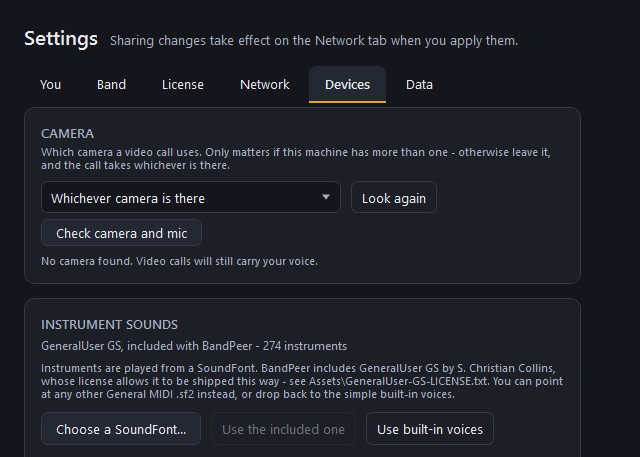
- Camera Default: whichever camera is there
- Which camera a video call uses; only matters with more than one. Look again after plugging one in. Check camera and mic is the same check as on the Chat page.
- Instrument sounds Default: GeneralUser GS, included
- The SoundFont every instrument plays from. Choose a SoundFont... picks any
General MIDI
.sf2; Use the included one goes back; Use built-in voices uses simple voices with no SoundFont. - Found on this machine
- SoundFonts BandPeer found on your computer, each with Use. In a band, each also has Share, and fonts a bandmate shared show Download. Only share a SoundFont whose license lets you pass it on.
Data
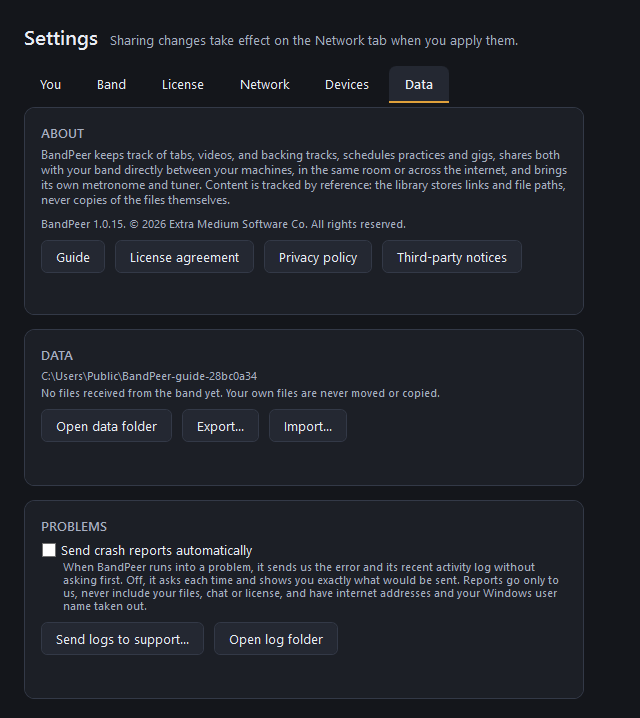
- About
- Your version, and Guide (this page), the License agreement, Privacy policy and Third-party notices.
- Data
- Where BandPeer keeps everything (Open data folder). Export... saves your library and calendar to one file; Import... merges one back in, adding what's new and updating what's changed. Export works with or without a license.
- Send crash reports automatically Default: off
- Off, BandPeer asks each time it runs into a problem and shows you exactly what would be sent. On, it sends the error and its recent activity log without asking. Reports never include your files, chat or license, and have internet addresses and your Windows user name taken out.
- Send logs to support... / Open log folder
- Send us the recent log when something isn't right, or look at it yourself.
What each page remembers
The practice pages keep their own choices from one session to the next. A new install starts like this:
| Metronome | 100 BPM, 4 beats per bar, Accent the first beat on, volume 70%, and the best click available (the SoundFont's own, or a woodblock). |
|---|---|
| Tuner | Standard tuning, A4 = 440 Hz, sensitivity in the middle. |
| Guitar | Standard tuning, volume 60%, and the best guitar in the SoundFont. Its tuning and sound are its own, separate from the Tuner's and the Keyboard's. |
| Keyboard | Volume 60%; the computer keys start at C3. |
| Drums and Looper | Each keeps its own tempo. Drums 80% volume, with the keys above until you assign your own; the Looper with no swing. |
| Tab Player | 4 clicks of count-in, the neck drawn with the thickest string at the top, volume 80%. |
| Tracks | Keep playing when I leave this page on, Loop off, the equalizer on and flat. |
| Library | Grouped by Kind, every kind's tab shown. |
Troubleshooting and FAQ
BandPeer won't start, or nothing happens when I open it
It's probably already running in the tray: look for its icon by the clock (it may be under the ^ arrow) and click it. Opening BandPeer again also brings the running copy's window up. If it really won't start, restart Windows and try again, then tell us.
Windows says "Windows protected your PC"
That's SmartScreen being cautious about a new release. The download page explains how to check the publisher and run it, and how to check the file's fingerprint.
My code won't work
Each code works once, for a day, and getting a new one stops the one before; sign in to your account and press Get a new code. Check the license is paid up there. Ten wrong codes in an hour from one address make it wait a while, right codes included. A band or classroom code must go on the band owner's machine. If it still refuses, Settings › License says why under the code box; send us that message.
My bandmate can't connect, or nothing syncs
Check that you're both licensed (a personal license each, and a band license for the band), both on the same version, and both have Let band members reach this machine on. On the same network, allow BandPeer through Windows Firewall when asked. In different places, see A band in more than one house. The Activity list on the Band page shows what's happening.
Where are my settings and files kept?
In %APPDATA%\BandPeer (Settings › Data › Open data
folder): your library, calendar, chat, bands, settings, license and identity key, and
files for what bandmates sent you. Your own files stay where they were; the library
only points at them. Logs are in %LOCALAPPDATA%\BandPeer\Logs.
How do I move to a new computer?
- On the old one, Settings › Data › Export... saves your library and calendar. Copy your own files across too.
- Install BandPeer on the new one and Import... the file.
- Get a new code from your account and paste it into Settings › License: your personal license moves to the new machine.
- Join your band again with its code and have an admin approve you. Your identity key is locked to the old machine, so the new one is a new member to the band; the band's shared library comes back from your bandmates.
A band's owner moving machines should talk to us first, since the band belongs to the owner's key.
How do I uninstall it, and what stays?
Uninstall BandPeer from Windows' Settings › Apps › Installed apps.
That removes the program and its start-with-Windows entry, and nothing else: your data folder
stays, ready if you install again. Delete %APPDATA%\BandPeer yourself to remove
it, after exporting anything you want to keep. Uninstalling doesn't cancel a subscription; see
Canceling.
My license ran out. Is my music gone?
No. BandPeer stops syncing and shows the license screen, but nothing is deleted. Export my data... on that screen, and Settings › Data, always work, and everything is back the moment there's a license again.
How do I send logs to support?
Open Settings › Data and press Send logs to support... under Problems. You see what will be sent before it goes. Then send us a message saying what happened, so we can match them up. When BandPeer itself runs into a problem, it offers to send a report.
Still stuck?
Send us a message or email bandpeersupport@gmail.com - we'll figure it out together.